
LLM: Speech Translation on SL2610-Series
Complete the Getting Started with SL2610 guide first. It covers setting up your board, cloning the examples, and creating the Python environment. Activate the environment with source .venv/bin/activate in each new terminal.
Large language models are not just for chat. In this guide you build a spoken-language translator that runs fully on the board: you speak English, and the app shows the translation in Spanish, French, German, Portuguese or Bahasa Indonesia.
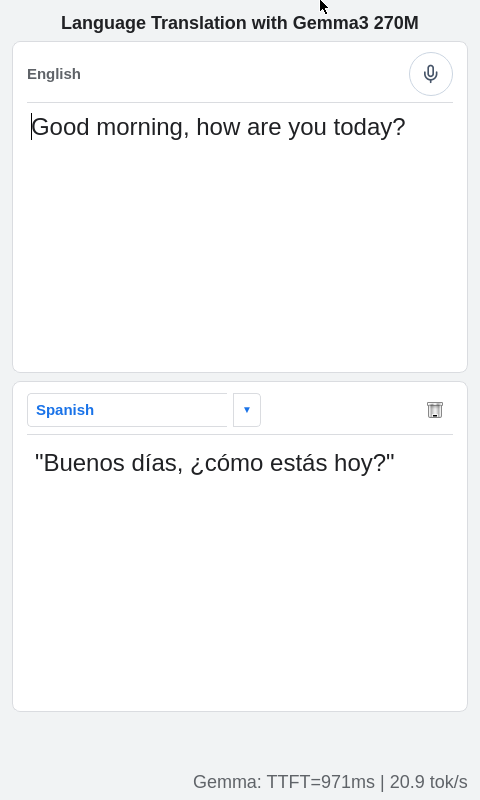
Three models work together in a pipeline:
- Silero VAD detects when someone is speaking.
- Moonshine turns the speech into text (speech-to-text) on the Torq NPU.
- Gemma 3 270M translates the text. It is the smallest model in Google's Gemma 3 family, designed for extreme efficiency.
The GUI is built with PyQt6.
Run the translator on Astra
Hardware
- A USB microphone attached to the board (not needed in text mode)
- Connect from a PC using ADB or SSH, or connect a display with a USB keyboard and mouse
Install the example-specific dependencies, the PortAudio libraries for microphone input, and download the models:
cd gemma_translate
pip install -r requirements.txt
../setup/install_portaudio.sh
python setup_demo.py
Translation on the edge
Voice input in the terminal
python run_cli.py
The app lists your audio input devices and asks you to choose one:
List of Audio input devices:
  0 HyperX SoloCast: USB Audio (hw:0,0), ALSA (2 in, 0 out)
  1 sysdefault, ALSA (128 in, 0 out)
> 3 default, ALSA (128 in, 0 out)
Enter input device to listen on:
Then speak. Press a number key at any time to change the target language, and Ctrl+C to exit. Speak phrases in English that are more than a few words but less than five seconds long.
Text input (no microphone)
python run_cli.py --text
→ Good morning, how are you?
[You] Good morning, how are you?
[Translation] Buenos días, ¿cómo estás?
→ /2
[Language changed to: French]
→ Good morning, how are you?
[Translation] Bonjour, comment allez-vous ?
Use /1 to /5 to switch language and /q to quit.
Run the GUI
Set up the display environment from the Getting Started guide (XDG_RUNTIME_DIR and WAYLAND_DISPLAY), and add the Qt variables:
export QT_QPA_PLATFORM=wayland
export WESTON_DISABLE_GBM_MODIFIERS=true
For portrait mode on an 800x480 display:
export ORIENTATION=portrait
export DISPLAY_HEIGHT=800
export DISPLAY_WIDTH=480
Then start the app:
python run_gui.py
Additional options to try
--language, the initial target language: Spanish (default), French, German, Portuguese or Bahasa Indonesia--moonshine-tda {cpu,dmabuf}, memory allocator for Moonshine (defaultdmabuf)--gemma-tda {cpu,dmabuf}, memory allocator for Gemma (defaultdmabuf)--gemma-device-io/--no-gemma-device-io, device-backed I/O for Gemma (default enabled)
Use the same allocator for both models. Mixing them in one process (for example Gemma on dmabuf with Moonshine on cpu) can fail, and dmabuf requires device I/O. To run both on the CPU allocator: python run_gui.py --moonshine-tda cpu --gemma-tda cpu --no-gemma-device-io.
Models
This tutorial uses the following pre-compiled models for the SL2610-Series. See the model pages for details, performance and download links:
Browse all models on the Models page.
Python walkthrough
The app code lives in gemma_translate/, with shared audio and model helpers in app_utils/:
run_cli.pyandrun_gui.pyare the terminal and PyQt entry pointstranslation.pybuilds the translation prompt and runs Gemmasetup_demo.pydownloads the model files from Hugging Face
Both Moonshine and Gemma are compiled to Torq .vmfb files and run with the Torq runtime on the NPU.